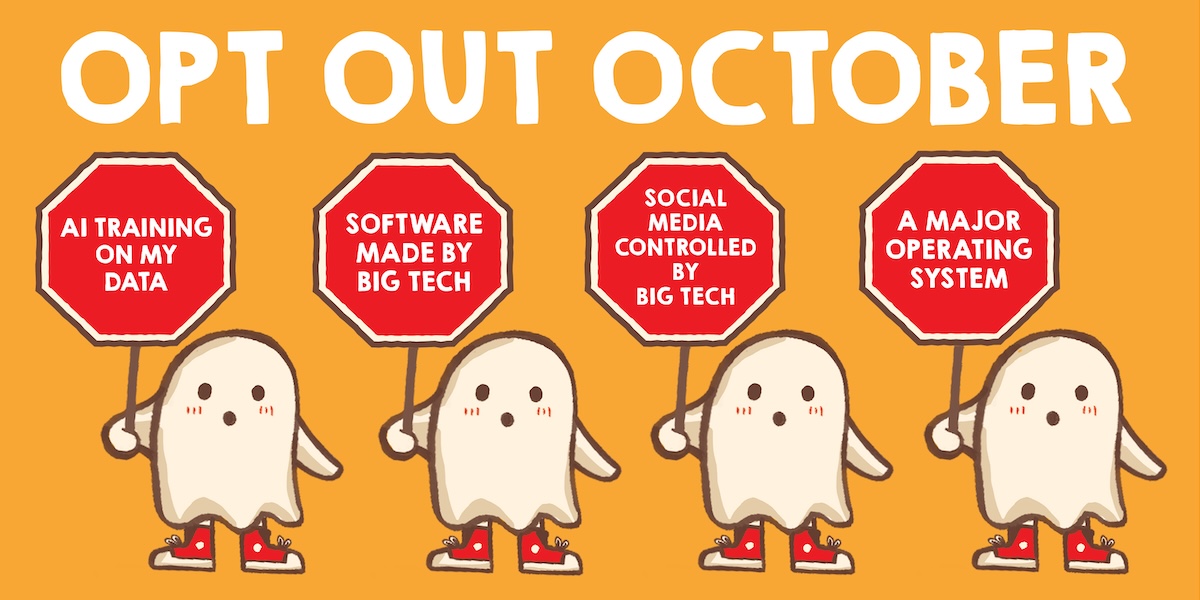
It seems like every software or website update brings new AI features. Some people find these features useful and immediately integrate them into their work. Others find them annoying or in the way. In both cases, you might not want the work you’re doing in that app used for AI training. This article provides various options for regaining control over your data and interactions with AI tools.
Tell Chatbots Not to Train on Your Conversations AI chatbots continuously collect extensive data from user interactions, often using this information to improve their underlying models. This process can sometimes involve human review of conversations. Fortunately, most major chatbot platforms provide options for users to disable this data collection for training purposes, ensuring that the content of their chats is not utilized beyond the immediate conversation. The article provides specific links to the privacy and data control documentation for popular chatbots such as ChatGPT, Perplexity, Gemini, Claude, and Copilot, guiding users through the steps to manage their privacy settings for each tool. It emphasizes the importance of proactively adjusting these settings to protect personal data. Disable AI Training on Social Networks Managing AI training on social media platforms presents a unique challenge, as public posts have historically been a significant source of training data for large language models. While some platforms offer direct controls, for many, like Instagram and Facebook, the most effective method to prevent data scraping for AI training is to set your account to private. However, specific social networks do offer more granular options: LinkedIn allows users to disable the use of their data for training generative AI models within their 'Settings & Privacy' under 'Data Privacy'. Snapchat includes an option in 'Settings > Privacy Controls' to prevent 'Snap using your Public Content to train generative AI models'. Twitch users can uncheck 'Training for Generative AI' under their 'Security and Privacy' settings. Lastly, X (formerly Twitter) provides controls under 'Settings and privacy > Privacy and safety > Grok & Third Party Collaborators' to manage data sharing and personalization for AI. Un-AI Your Browser The integration of AI features into web browsers has become widespread, making it increasingly difficult, though not impossible, to opt out of these functionalities. Users do have some control over AI-related settings. In Chrome, AI innovations can be managed and turned off by navigating to the three-dot icon in the upper-right, selecting 'Settings', and then clicking the 'AI innovations' option in the sidebar. Microsoft Edge offers similar controls; users can click the three-dot icon, go to 'Settings', and then select 'Copilot and AI' to disable unwanted AI tools. Firefox, known for its privacy focus, provides an 'AI controls' tab under its three-line icon in the upper-right 'Settings', allowing users to either 'Block AI enhancements' entirely or selectively enable/disable individual AI tools based on their preferences. If these options are insufficient, the article suggests considering a complete browser switch to more privacy-focused alternatives. Turn Off Android and iOS AI Features Modern smartphones, both Android and iOS, are continuously integrating more AI features that rely on collecting personal data, making it challenging to disable them entirely. On Android devices, especially Google Pixel phones or others supporting Gemini, users can no longer revert to Google Assistant. The primary option is to completely disable Gemini as a voice assistant or seek an alternative. Specific Google apps also offer AI control: in Google Messages, users can disable the 'Show Gemini button' via 'Messages settings > Gemini in Messages'. In Google Photos, the 'Use Gemini in Photos' option can be turned off in 'Photos Settings > Preferences > Gemini features in Photos'. For Gboard, AI-powered 'Writing tools' can be disabled by tapping the gear icon above the keyboard and navigating to 'Corrections & Suggestions'. For iOS 27, limiting Apple's new Siri AI access requires a more in-depth process. Users must go to 'Settings > Screen Time > Content & Privacy Restrictions', enable the toggle, then tap 'Siri' and select 'Siri Classic' to revert to the previous version. Within the same menu, users can also disable 'Writing assistance', 'Math Assistance', and 'Image creation'. Special Google-Related Extended Cut Beyond mobile operating systems and browsers, Google integrates AI across many of its other services. In Gmail, all AI features, including 'smart compose', automatic filters, and even spellcheck, are bundled under a single 'Smart features' toggle. Disabling this option via the cog icon in Gmail and selecting 'See all settings > General' will turn off all these functionalities. Similarly, for Google Workspace, users can disable Google Gemini features, though this comes with the compromise of losing personalized functionalities like showing Gmail events in the calendar automatically or personalized search results. These settings can be accessed, for example, from Google Drive by clicking the cog icon, then 'Settings > Privacy', and finally 'Manage Workspace smart feature settings' to disable 'Smart features in Google Workspace' and 'Smart features in other Google Products'. Wrangle the Rest of Your Software The pervasive nature of AI means it's embedded in countless other software applications beyond the major platforms discussed. Tools like Zoom, Adobe Acrobat, and Notion are examples of common software that have incorporated AI functionalities. Users are encouraged to take the initiative to thoroughly examine the settings within all their frequently used applications. The goal is to identify and disable any AI training or features that they do not wish to utilize, thereby safeguarding their data and maintaining privacy across their digital ecosystem. The article also recommends sharing any discoveries about these settings with others to foster a more privacy-aware community. Consider Local Models For individuals who are primarily concerned about major tech companies collecting their data but still wish to leverage AI, local AI models offer a compelling alternative. These open-weight models can be run entirely on a user's personal computer (desktop or laptop), providing complete control over the data and the AI's operations. While local models might deliver slower and less sophisticated results compared to cloud-based solutions, they ensure that personal data remains off third-party servers. The article suggests using local inference engines such as KoboldCpp, LM Studio, Ollama, or Llamafile, in conjunction with an open-weight model that fits the computer's memory. These setups allow for various local AI applications like speech-to-text, grammar checking, or other custom uses. Additionally, there are purpose-built local software options, such as the transcription tool OATS or the chat and image tool Off Grid AI Desktop, which simplify the process by not requiring users to select and manage models themselves.
Tell Chatbots Not to Train on Your Conversations
AI chatbots continuously collect extensive data from user interactions, often using this information to improve their underlying models. This process can sometimes involve human review of conversations. Fortunately, most major chatbot platforms provide options for users to disable this data collection for training purposes, ensuring that the content of their chats is not utilized beyond the immediate conversation. The article provides specific links to the privacy and data control documentation for popular chatbots such as ChatGPT, Perplexity, Gemini, Claude, and Copilot, guiding users through the steps to manage their privacy settings for each tool. It emphasizes the importance of proactively adjusting these settings to protect personal data.
Disable AI Training on Social Networks
Managing AI training on social media platforms presents a unique challenge, as public posts have historically been a significant source of training data for large language models. While some platforms offer direct controls, for many, like Instagram and Facebook, the most effective method to prevent data scraping for AI training is to set your account to private. However, specific social networks do offer more granular options: LinkedIn allows users to disable the use of their data for training generative AI models within their 'Settings & Privacy' under 'Data Privacy'. Snapchat includes an option in 'Settings > Privacy Controls' to prevent 'Snap using your Public Content to train generative AI models'. Twitch users can uncheck 'Training for Generative AI' under their 'Security and Privacy' settings. Lastly, X (formerly Twitter) provides controls under 'Settings and privacy > Privacy and safety > Grok & Third Party Collaborators' to manage data sharing and personalization for AI.
Un-AI Your Browser
The integration of AI features into web browsers has become widespread, making it increasingly difficult, though not impossible, to opt out of these functionalities. Users do have some control over AI-related settings. In Chrome, AI innovations can be managed and turned off by navigating to the three-dot icon in the upper-right, selecting 'Settings', and then clicking the 'AI innovations' option in the sidebar. Microsoft Edge offers similar controls; users can click the three-dot icon, go to 'Settings', and then select 'Copilot and AI' to disable unwanted AI tools. Firefox, known for its privacy focus, provides an 'AI controls' tab under its three-line icon in the upper-right 'Settings', allowing users to either 'Block AI enhancements' entirely or selectively enable/disable individual AI tools based on their preferences. If these options are insufficient, the article suggests considering a complete browser switch to more privacy-focused alternatives.
Turn Off Android and iOS AI Features
Modern smartphones, both Android and iOS, are continuously integrating more AI features that rely on collecting personal data, making it challenging to disable them entirely. On Android devices, especially Google Pixel phones or others supporting Gemini, users can no longer revert to Google Assistant. The primary option is to completely disable Gemini as a voice assistant or seek an alternative. Specific Google apps also offer AI control: in Google Messages, users can disable the 'Show Gemini button' via 'Messages settings > Gemini in Messages'. In Google Photos, the 'Use Gemini in Photos' option can be turned off in 'Photos Settings > Preferences > Gemini features in Photos'. For Gboard, AI-powered 'Writing tools' can be disabled by tapping the gear icon above the keyboard and navigating to 'Corrections & Suggestions'. For iOS 27, limiting Apple's new Siri AI access requires a more in-depth process. Users must go to 'Settings > Screen Time > Content & Privacy Restrictions', enable the toggle, then tap 'Siri' and select 'Siri Classic' to revert to the previous version. Within the same menu, users can also disable 'Writing assistance', 'Math Assistance', and 'Image creation'.
Special Google-Related Extended Cut
Beyond mobile operating systems and browsers, Google integrates AI across many of its other services. In Gmail, all AI features, including 'smart compose', automatic filters, and even spellcheck, are bundled under a single 'Smart features' toggle. Disabling this option via the cog icon in Gmail and selecting 'See all settings > General' will turn off all these functionalities. Similarly, for Google Workspace, users can disable Google Gemini features, though this comes with the compromise of losing personalized functionalities like showing Gmail events in the calendar automatically or personalized search results. These settings can be accessed, for example, from Google Drive by clicking the cog icon, then 'Settings > Privacy', and finally 'Manage Workspace smart feature settings' to disable 'Smart features in Google Workspace' and 'Smart features in other Google Products'.
Wrangle the Rest of Your Software
The pervasive nature of AI means it's embedded in countless other software applications beyond the major platforms discussed. Tools like Zoom, Adobe Acrobat, and Notion are examples of common software that have incorporated AI functionalities. Users are encouraged to take the initiative to thoroughly examine the settings within all their frequently used applications. The goal is to identify and disable any AI training or features that they do not wish to utilize, thereby safeguarding their data and maintaining privacy across their digital ecosystem. The article also recommends sharing any discoveries about these settings with others to foster a more privacy-aware community.
Consider Local Models
For individuals who are primarily concerned about major tech companies collecting their data but still wish to leverage AI, local AI models offer a compelling alternative. These open-weight models can be run entirely on a user's personal computer (desktop or laptop), providing complete control over the data and the AI's operations. While local models might deliver slower and less sophisticated results compared to cloud-based solutions, they ensure that personal data remains off third-party servers. The article suggests using local inference engines such as KoboldCpp, LM Studio, Ollama, or Llamafile, in conjunction with an open-weight model that fits the computer's memory. These setups allow for various local AI applications like speech-to-text, grammar checking, or other custom uses. Additionally, there are purpose-built local software options, such as the transcription tool OATS or the chat and image tool Off Grid AI Desktop, which simplify the process by not requiring users to select and manage models themselves.